> For the complete documentation index, see [llms.txt](https://docs.vultisig.com/llms.txt). Markdown versions of documentation pages are available by appending `.md` to page URLs; this page is available as [Markdown](https://docs.vultisig.com/security-and-technology/keysign.md).
# Keysign: how Vultisig signs a transaction
Keysign is how a threshold of devices sign a transaction together. Fast Vault and Secure Vault both use it: QR pairing, signing ceremony, broadcast.
Keysigning is how a threshold of devices sign a transaction together. Fast Vault and Secure Vault both use it. The path looks different on the screen.
***
## How It Works
Transaction signing flowchart
### Session Initiation
A device initiates a cryptographic session to sign a transaction. It transforms user input into the transaction payload while acting as the session host. The initiating device sends session metadata (including session ID) to the Vultisig relay server or broadcasts it over the local network. A QR code is generated containing session-specific details for pairing devices.
### Device Pairing
Pairing devices scan the QR code to join the session using the embedded session ID and encrypted hex chain code. The initiating device monitors joining devices and initiates the keysigning ceremony when the required threshold is reached.
### Signing Ceremony
During the keysigning ceremony, participating devices jointly sign the transaction using threshold signature cryptography. No single device ever has access to the complete private key—only the final signature is assembled.
### Broadcast
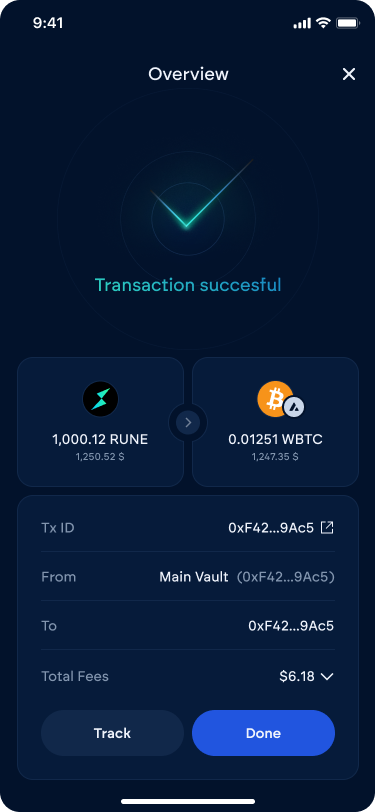
Upon successful completion, the initiating device propagates the signed transaction to the blockchain and distributes the transaction hash to other participating devices for verification.
***
## Fast Vault Signing
Fast Vaults provide a single-device signing experience with the Vultiserver as the automatic co-signer.
### Steps
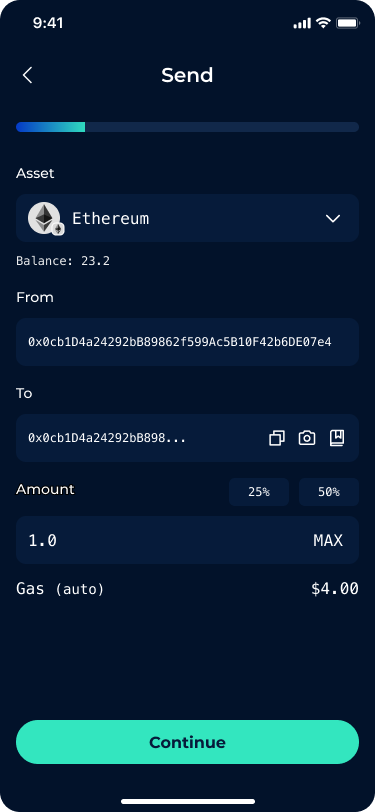
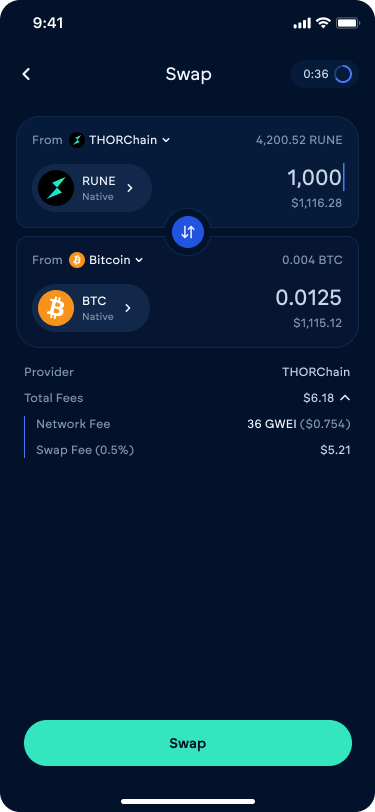
1. Prepare the transaction (Send or Swap)
2. Tap **Swap**
Send screen
Swap screen
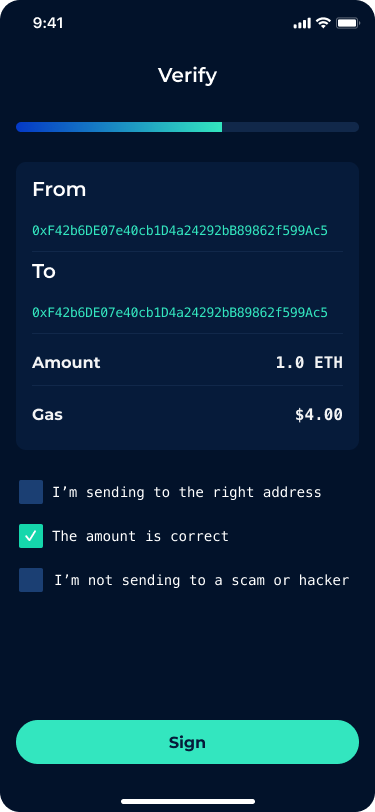
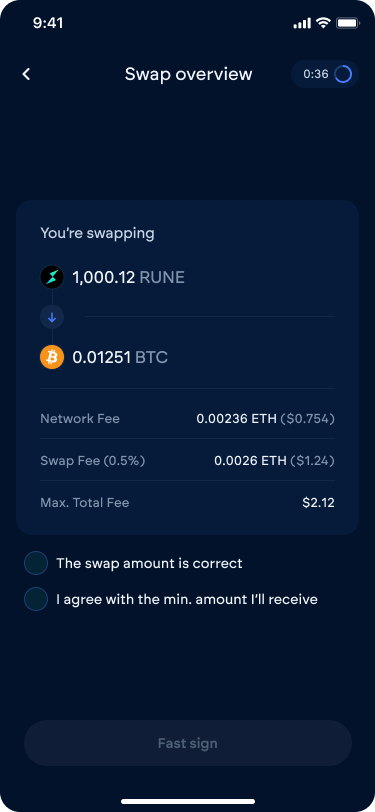
3. Verify transaction details
Send verification
Swap verification
4. Enter your password
5. Wait for signing to complete
***
## Secure Vault Signing
Secure Vaults require threshold devices to physically participate in signing.
### Video Guide
[](https://twitter.com/iceman00008/status/1824690627843592573/video/1)
### Preparation
Depending on your vault configuration (2-of-2, 2-of-3, 3-of-4, or m-of-n), have the threshold number of devices ready.
{% hint style="info" %}
One device creates the transaction, other devices verify and co-sign. Both devices will co-sign but only one transaction is sent—no duplicates.
{% endhint %}
### On the Main Device
1. Prepare the transaction (Send, Swap, or DeFi action)
2. Tap **Continue** or **Swap**
Send screen
Swap screen
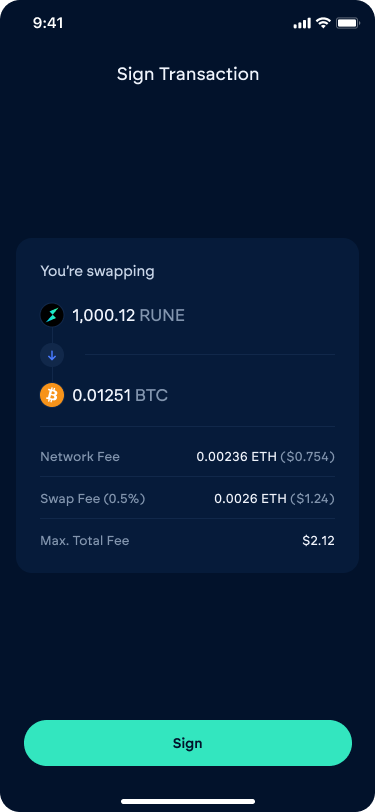
3. Verify all details on the confirmation screen
4. Check reminder boxes and tap **Sign**
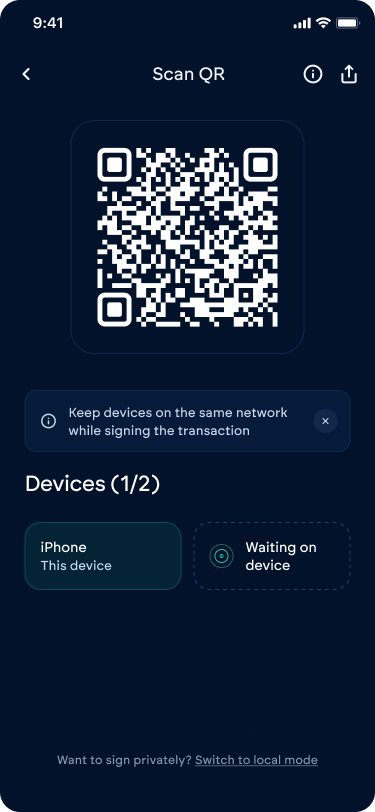
5. A QR code will appear
{% hint style="info" %}
Select **Local mode** to sign without using the Vultisig relay server (requires same WiFi network).
{% endhint %}
### On the Pair Device(s)
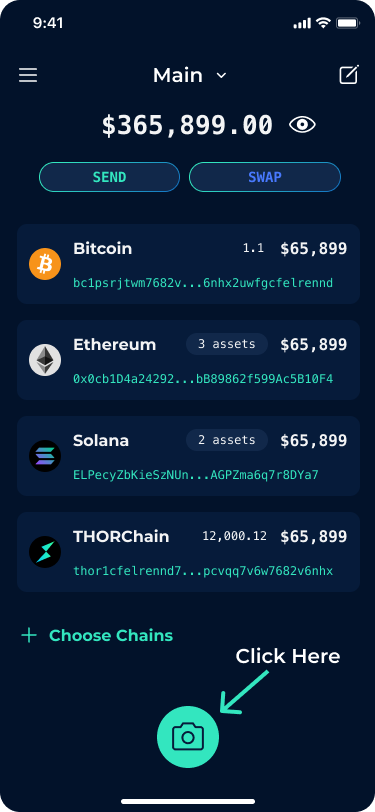
1. Select the same vault
2. Tap the **Camera** icon
3. Scan the QR code from the main device
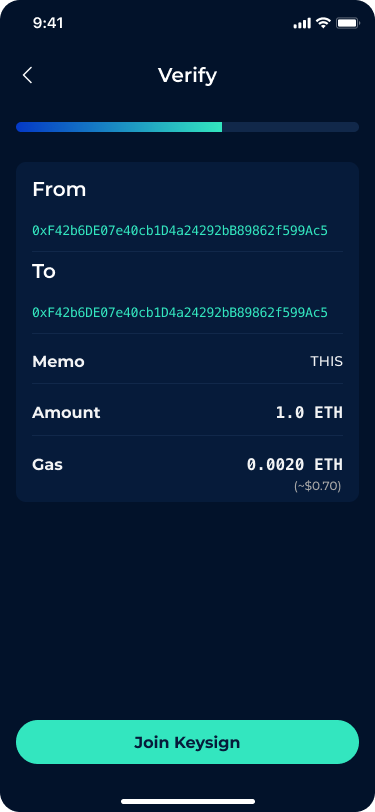
4. Verify transaction details match
5. Tap **Join key sign**
### Completion
Signing starts automatically when the threshold of devices has joined. The transaction signs and broadcasts from one of the devices.
***
## Network Modes
| Mode | Description | Use Case |
| ------------ | ------------------------- | ----------------------------- |
| **Internet** | Via Vultisig relay server | Devices on different networks |
| **Local** | Via local WiFi (mDNS) | Same network, maximum privacy |
***
## Related
* [TSS Actions](/security-and-technology/tss-actions.md) — Key generation, signing, resharing
* [Sending](/app-guide/wallet/sending.md) — How to send transactions
* [Swapping](/app-guide/wallet/swapping.md) — How to swap assets
---
# Agent Instructions
This documentation is published with GitBook. GitBook is the documentation platform designed so that both humans and AI agents can read, navigate, and reason over technical content effectively. Learn more at gitbook.com.
## Querying This Documentation
If you need additional information that is not directly available in this page, you can query the documentation by asking a question.
Perform an HTTP GET request on the following URL with the `ask` and `goal` query parameters:
```
GET https://docs.vultisig.com/security-and-technology/keysign.md?ask=&goal=
```
`ask` is the immediate question: it should be specific, self-contained, and written in natural language.
`goal` is what the user is ultimately trying to achieve, the reason they need the answer. Sharing it helps GitBook give you a better, more relevant answer. A goal is most helpful when it describes the outcome the user wants rather than restating the question. For example, with `ask=how do I create an API token`, a goal like `automate deployments from our CI pipeline` lets GitBook tailor the answer to that use case.
The response will contain a direct answer to the question and relevant excerpts and sources from the documentation.
Use this mechanism when the answer is not explicitly present in the current page, you need clarification or additional context, or you want to retrieve related documentation sections.